Integrating Zoom with Caldasa
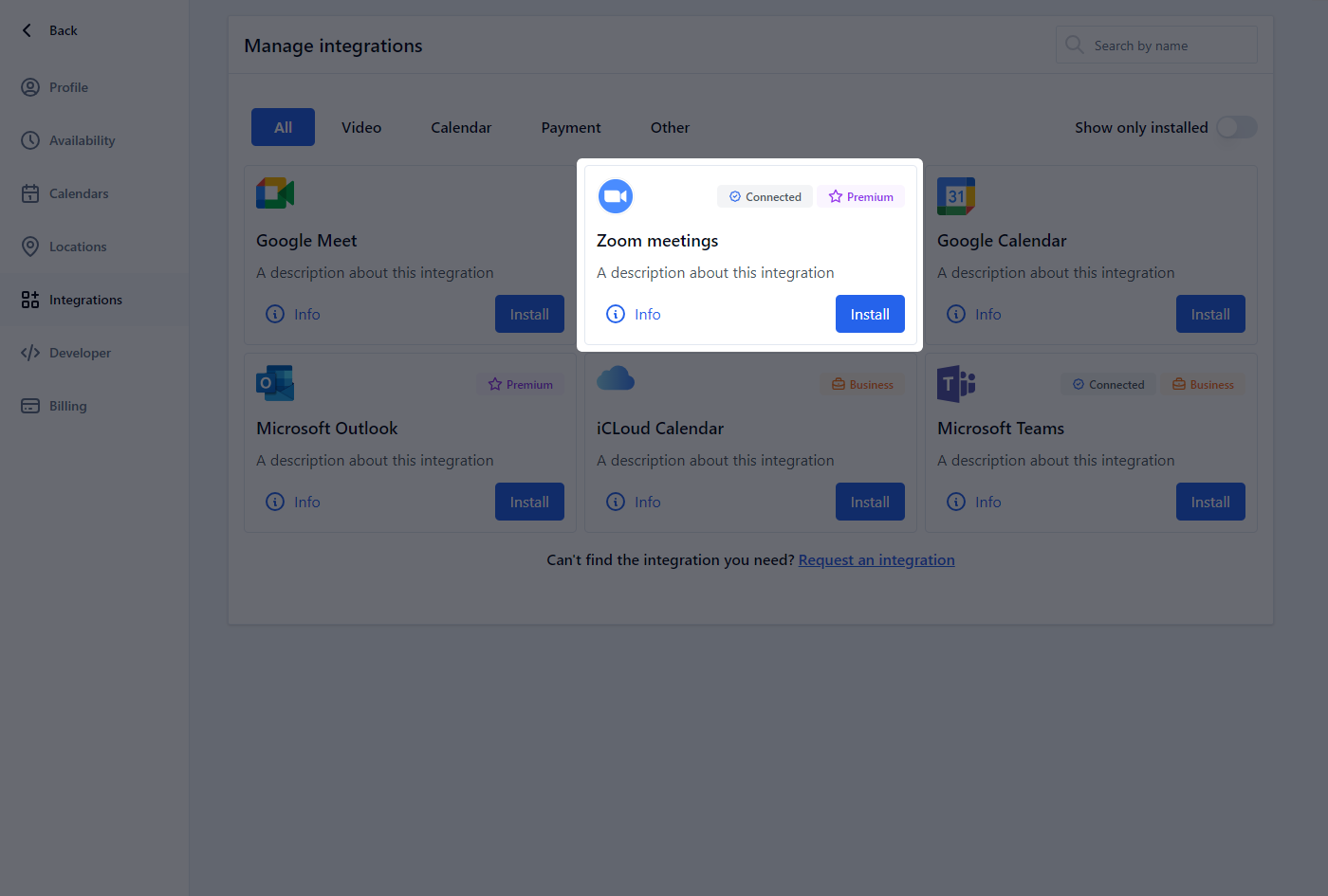
Integrating Zoom with Caldasa streamlines the process of scheduling and managing virtual meetings. This documentation provides a comprehensive guide on adding, using, and removing the Zoom integration in Caldasa.
Adding the Zoom App
- Login to your Zoom Account and navigate to the Zoom App Marketplace.
- Search for the “Caldasa” app.
- Follow the on-screen instructions to add the Caldasa app to your Zoom account.
Zoom Integration Troubleshooting Guide
Usage
- Scheduling Meetings: Once integrated, Caldasa will automatically add Zoom meeting links to your scheduled events.
- Prerequisites: Ensure you have an active Zoom account and your Caldasa account is linked to it.
Removing the Zoom App
- Login to your Zoom Account and navigate to the Zoom App Marketplace.
- Click Manage >> Added Apps.
- Search for and click on the “Caldasa” app.
- Click Remove to deauthorize the app.
Note: Removing the Caldasa app from Zoom will stop automatic meeting link generation and may affect scheduled meetings.
Troubleshooting
- Issues Adding the App: Ensure your Zoom account is active and you have the necessary permissions to add apps.
- Problems with Meeting Links: Verify that your Caldasa and Zoom accounts are correctly linked.
FAQ
- Authorization Issues: Check that you have given all necessary permissions during the OAuth process.
- Activation Emails: Confirm that the email associated with your Caldasa account is correct.
Contact Support
Our support team is available 24/7 to assist with any issues. You can expect a response within 24 hours.
- Support Contact: Caldasa Support